
I originally built A11Y Cat for investigating accessibility issues directly in the browser.
That worked well for page-level investigation, but I still had another problem: repeatable audits across multiple pages.
Running axe is straightforward. Producing an audit that shows what was actually tested, what failed, what could not be tested and what still needs manual review is not.
So I started building the Accessibility Audit Plugin.
It takes a URL or a defined list of pages, runs a structured accessibility assessment and produces evidence for remediation and human review.
It currently runs through:
- GitHub Actions
- Cursor
- Claude Code
- Claude Desktop
- Codex CLI
- GitHub Copilot
The AI client is optional.
The actual testing is performed by the same Node.js engine using Playwright, Chromium, axe-core and additional deterministic browser checks.
Claude, Cursor, Codex and Copilot can start the audit and work with the results. They do not generate the accessibility findings.
The plugin does not require an OpenAI or Anthropic API key.
WCAG coverage
The current target is WCAG 2.2 Level AA.
The report accounts for all 55 active Level A and AA success criteria.
This does not mean all 55 criteria are automated.
Each criterion has to end up with a visible status:
- passed
- failed
- manual review
- not applicable
- inconclusive
If automation cannot make the decision, the criterion remains open for human review.
No automated finding is not treated as the same thing as passed.
That distinction is important because a scanner can only make decisions about the checks it actually performed.
Page states and viewport testing
Each supplied page is tested at:
- desktop
- mobile
- 320px reflow
- 200% text size
- WCAG text-spacing overrides
The engine checks areas including:
- accessible names
- headings
- landmarks
- page structure
- form labels
- field relationships
- duplicate identifiers
- links
- tables
- media
- semantic controls
Reflow, text resizing and text spacing are separate checks.
They are not grouped into one generic responsive test.
Keyboard testing
Keyboard testing runs forwards and backwards through the page.
The engine checks:
- whether interactive elements can be reached
- focus order
- visible focus
- whether focus is obscured
- bypass links
- disclosures
- tabs
- recognised keyboard interaction patterns
This is behavioural testing rather than checking only for the presence of tabindex or other static attributes.
Responsive checks
Responsive testing looks for content that becomes:
- clipped
- covered
- unavailable
- unusable at narrow widths
Some layout findings need more than a single DOM measurement before they should become a confirmed issue.
For clipping and overlap checks, the engine can inspect:
- element geometry
- hit testing
- viewport position
- visibility
- repeatability of the result
This removes a number of cases where a suspicious measurement exists but there is no actual user impact.
User journeys
Static page scans also miss issues that only appear after interaction.
Projects can define their own user journeys.
For example:
- submit a form
- open a modal
- operate tabs
- dismiss an overlay
- trigger validation
- check an error announcement
The audit replays those steps and records the resulting state as evidence.
This makes it possible to test components after interaction instead of testing only the initial DOM.
Screen reader evidence
There are optional Guidepup workflows for collecting:
- VoiceOver evidence on macOS
- NVDA evidence on Windows
I use these as supporting evidence.
They are useful for repeatable checks, but they are not a replacement for testing by a screen-reader user.
An automated transcript cannot reliably decide whether a complex journey is understandable or usable in practice.
This is particularly relevant for mobile screen readers and interactions that require subjective usability judgement.
False positives
This has been one of the main areas I have been working on.
Finding something suspicious is not always enough to call it a WCAG failure.
For example, an element may technically overlap another element without causing any actual accessibility problem.
For some checks, the plugin validates the condition before promoting it to a confirmed finding.
That can include:
- visibility
- geometry
- hit testing
- viewport position
- repeatability
Repeated instances of the same component issue can also be consolidated.
If the same component fails 20 times, the JSON evidence keeps the individual occurrences.
The main report can represent them as one root cause instead of creating 20 near-identical rows.
Evidence classification
Findings are currently divided into four evidence types.
Confirmed
The engine reproduced deterministic evidence of a failure.
Review
There is credible evidence of a problem, but context, a WCAG exception or another manual decision is required.
Blocker
Part of the test could not complete.
A blocker is not converted into a pass.
For example, if a browser interaction fails after axe has already completed successfully, the existing axe evidence remains valid while the affected interaction check is marked incomplete.
Manual
The assessment cannot be completed reliably by automation.
Severity, confidence, WCAG level and delivery priority are stored separately.
They describe different things.
A high-impact issue can still have low-confidence evidence.
A Level A failure is not automatically more severe than every Level AA failure.
Reports
The main output is a self-contained accessible HTML report.
The audit also generates:
- a validated Excel workbook
- structured JSON
- contextual screenshots
- a ZIP containing the complete evidence package
The HTML, Excel and JSON reports are generated from the same result data.
Finding counts, severity and evidence classifications therefore stay consistent between formats.
Overall WCAG conformance remains:
not determined
until the required human assessment has been completed.
The plugin supports an accessibility audit.
It does not issue an automatic WCAG certificate.
GitHub Actions
The easiest way to run the audit without installing any AI client is GitHub Actions.
Create:
.github/workflows/accessibility-audit.ymlAdd:
name: Accessibility audit

on:
  workflow_dispatch:
    inputs:
      url:
        description: Public page to audit
        required: true
        type: string
        default: https://example.com/

permissions:
  contents: read

jobs:
  audit:
    uses: CarlasHub/accessibility-audit-plugin/.github/workflows/reusable-accessibility-audit.yml@v1
    with:
      url: ${{ inputs.url }}
Commit the file and go to:
Actions → Accessibility audit → Run workflowEnter the authorised public URL and start the run.
The workflow handles:
- Chromium
- audit execution
- report generation
- artifact upload
When it finishes, the workflow summary links to the full report.
The audit runs using the user’s GitHub repository and GitHub Actions allowance.
It does not run on my machine or through a hosted service controlled by me.
The basic workflow does not require a separate access token or browser configuration.
Scope
The Action tests the URLs supplied to it.
If you enter:
https://example.com/it tests that page.
It does not automatically crawl the rest of the site.
This is intentional.
A homepage should not be treated as permission to discover and test every linked URL.
For a multi-page audit, the pages need to be supplied explicitly.
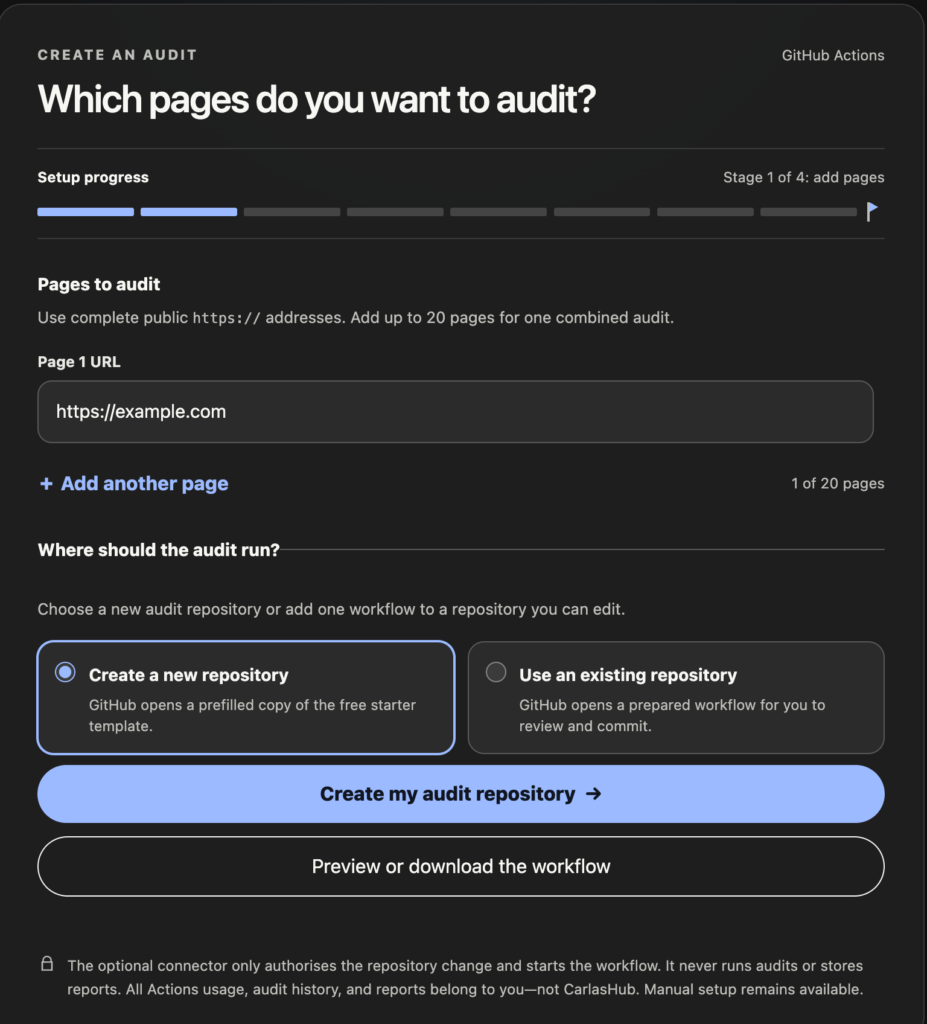
The setup builder can generate the workflow.
The GitHub Action guide covers:
- multiple URLs
- pull request reports
- quality gates
- custom interaction journeys
Local installation
For Cursor, Claude, Codex or Copilot, I normally install the plugin once in a separate tools directory rather than copying it into every project.
Requirements:
- Git
- Node.js 22 or later
- npm
Clone and build:
git clone https://github.com/CarlasHub/accessibility-audit-plugin.git accessibility-audit
cd accessibility-audit
npm ci
npm run build
If Chromium is not already available:
npx playwright install chromiumCheck the CLI:
node dist/cli.js --version
node dist/cli.js --help
Cursor
From the plugin directory on macOS or Linux:
PLUGIN_PATH="$(pwd -P)"
mkdir -p ~/.cursor/plugins/local
ln -s "$PLUGIN_PATH" ~/.cursor/plugins/local/accessibility-audit
Reload Cursor using:
Developer: Reload WindowOpen Customize and confirm that accessibility-audit, its command and its MCP server are enabled.
Run:
/accessibility-audit https://example.com/Managed Cursor installations may require an administrator to allow local plugin imports.
Claude Code
For one Claude Code session:
cd /path/to/project-being-audited
claude --plugin-dir /path/to/accessibility-audit
Then run:
/accessibility-audit https://example.com/For a persistent installation:
/plugin marketplace add /path/to/accessibility-audit
/plugin install accessibility-audit@accessibility-audit-marketplace
/reload-plugins
The /plugin screen shows whether the plugin and MCP server loaded correctly.
Claude Desktop
Claude Desktop needs an uploadable package.
Build it with:
npm ci
npm run package:claude-desktop
The ZIP is generated at:
artifacts/accessibility-audit-claude-desktop-<version>.zipIn Claude Desktop:
Customize → Plugins → UploadUpload the ZIP without extracting it.
Start a new conversation, type / and choose Run Accessibility Audit.
The MCP server and browser run locally on the machine where the plugin is installed.
An organisation may disable custom plugins or local MCP servers.
Codex
Codex CLI currently supports the plugin.
The Codex IDE extension does not currently load it.
Install the local checkout:
codex plugin marketplace add /path/to/accessibility-audit
codex plugin add accessibility-audit@accessibility-audit-marketplace
codex plugin list
Start Codex from the project:
cd /path/to/project-being-audited
codex
Open:
/pluginsConfirm that accessibility-audit is installed.
Then ask:
Use the Accessibility Audit plugin to audit https://example.com/.Start a new Codex session after installing or updating the plugin.
GitHub Copilot CLI
Build and validate the package:
npm run build:marketplace
npm run validate:marketplace
npm run test:marketplace
Install it:
copilot plugin install ./marketplace/carlashub-plugin-marketplace/accessibility-audit/copilot-cli
copilot plugin list
Check the installed skills:
/skills listrun-accessibility-audit should be available.
Then run:
Use the Accessibility Audit plugin to audit https://example.com/.GitHub Copilot in VS Code uses the generated marketplace package and an organisation-approved marketplace installation flow.
The CLI currently provides the more direct local installation.
One page, several pages or an inventory
Single page:
/accessibility-audit https://example.com/Several pages:
/accessibility-audit https://example.com/ https://example.com/contact https://example.com/jobsOr provide an inventory:
/accessibility-audit /absolute/path/to/pages.xlsxThe local plugin currently accepts:
- XLSX
- CSV
- TXT
- JSON
With Codex or Copilot, the same request can be written normally:
Use the Accessibility Audit plugin to audit every URL in pages.xlsx.Before the browser starts, the plugin asks the user to confirm:
- exact pages
- auditor name
- main QA URL
- output location
By default, results are written to:
~/Accessibility Audit ResultsIf the whole site is in scope, the inventory should contain the canonical URLs that need to be assessed.
How this relates to A11Y Cat
This came directly out of the work I was already doing with A11Y Cat.
A11Y Cat is mainly useful when I am working directly with a page.
I use it to inspect accessibility problems in their visual and semantic context, look at individual findings and investigate what is happening in the browser.
The audit plugin solves a different part of the same problem:
- run the same checks again
- test multiple pages
- keep structured evidence
- run in CI
- preserve completed evidence when another check fails
- distinguish incomplete testing from passing
- keep manual requirements visible
I also built an accessibility test-case manager for the parts that still require manual testing.
So at the moment the split is roughly:
A11Y Cat
Page investigation.
Accessibility Audit Plugin
Repeatable browser testing and evidence.
Accessibility Test Case Manager
Manual testing and human decisions.
They were not planned as one large accessibility platform.
They are separate projects that came out of problems I was already hitting while doing accessibility work.
The main rule across all three is the same:
only claim what the test actually proved.
The source, installation instructions and technical documentation are available in the Accessibility Audit Plugin repository.